vikram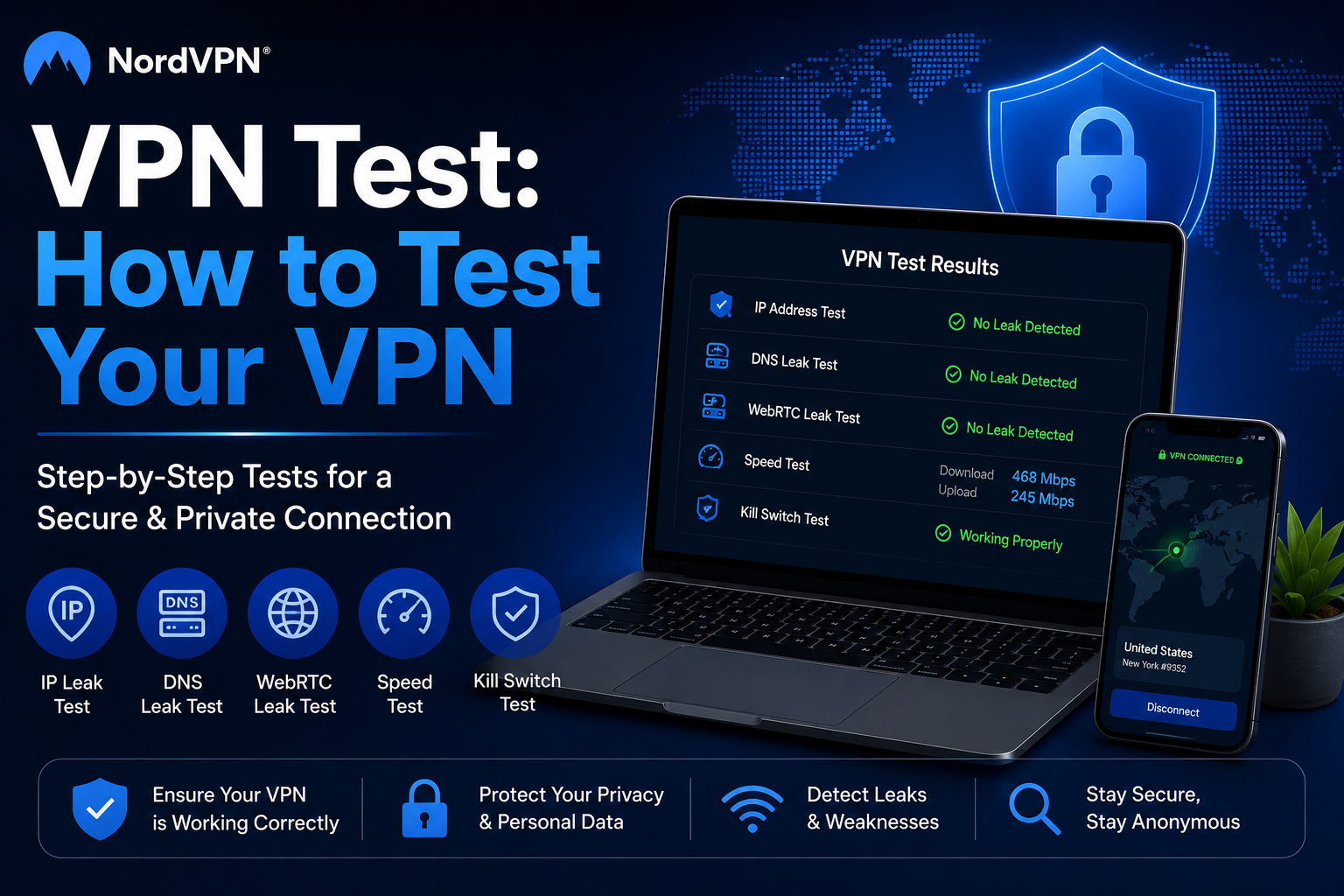
Installing a VPN doesn’t automatically mean everything is working correctly.
A proper VPN test can help you check whether your VPN is hiding your IP address, preventing DNS leaks, protecting against WebRTC leaks, and providing acceptable connection speeds.
There are several tests you can perform yourself.
What Should You Test in a VPN?
The most important VPN tests include:
- DNS leak test
- IP address leak test
- WebRTC leak test
- VPN speed test
- Malware test
The first three tests help determine whether your VPN is protecting information that should remain hidden. A speed test shows how the VPN affects your download and upload performance.
1. DNS Leak Test
DNS stands for Domain Name System.
DNS translates website names into IP addresses so your browser can connect to them.
When a VPN is working properly, DNS requests should be routed through the VPN connection. A DNS leak happens when these requests escape the VPN tunnel and become visible to your ISP or another party.
How to Test for a DNS Leak
You can use a DNS leak testing service such as DNSLeakTest.
First connect to your VPN and then perform the test.
If the results reveal information associated with your normal connection rather than the VPN connection, investigate the VPN configuration or provider.
The supplied Nord brief specifically recommends testing periodically rather than assuming the VPN will always behave perfectly.
2. IP Address Leak Test
A VPN should hide your original IP address.
An IP leak occurs when your actual IP address becomes visible despite the VPN connection.
Leaks can happen with both IPv4 and IPv6 connections. They can also occur when a VPN connection drops and reconnects.
How to Test Your IP
Before connecting to your VPN, check your current IP address.
Then connect to your VPN and check it again.
The displayed IP should change to the VPN connection’s IP address.
The supplied material recommends IPv6-test.com for checking IP-related information.
3. WebRTC Leak Test
WebRTC enables real-time communication inside web browsers, including voice and video communication.
A WebRTC leak can potentially expose your real IP address through the WebRTC API.
How to Test WebRTC
You can perform a simple comparison:
- Disconnect your VPN.
- Find your current IP address.
- Close your browser.
- Connect your VPN.
- Open the browser again.
- Check your IP address.
- Compare the results.
If your real IP continues to appear while the VPN is connected, investigate whether WebRTC is exposing it.
4. VPN Speed Test
VPN speed is another important part of testing.
A VPN connection can be affected by:
- VPN protocol
- Physical distance
- Server load
- Your original internet speed
- Network congestion
Physical distance matters because your data has to travel to the VPN server and back. A server farther away can therefore produce slower results.
How to Test VPN Speed
Use a speed testing service such as Speedtest.
First test your connection without a VPN.
Then connect to your VPN and repeat the test.
For a more useful comparison, test several VPN servers or countries that you regularly use.
5. VPN Malware Test
Malware testing is particularly important when dealing with unknown or free VPN applications.
The supplied Nord content notes that free VPN applications are more likely to create concerns around malware, leaks, and slow performance.
You can scan an application or file using a reputable security tool such as VirusTotal.
How Often Should You Test Your VPN?
You don’t necessarily need to run every test every day.
However, it can be useful to check your VPN after:
- Installing a new VPN
- Changing VPN providers
- Changing important settings
- Experiencing connection problems
- Updating your VPN application
Testing NordVPN
The supplied information cites an October 2025 West Coast Labs test in which NordVPN averaged 817 Mbps and received a 58/60 overall score.
NordVPN also supports multiple protocols and has a large server network, allowing users to test different server locations and connection methods.
Get NordVPN
https://go.nordvpn.net/aff_c?offer_id=266&aff_id=154507&url_id=710